Your first observation
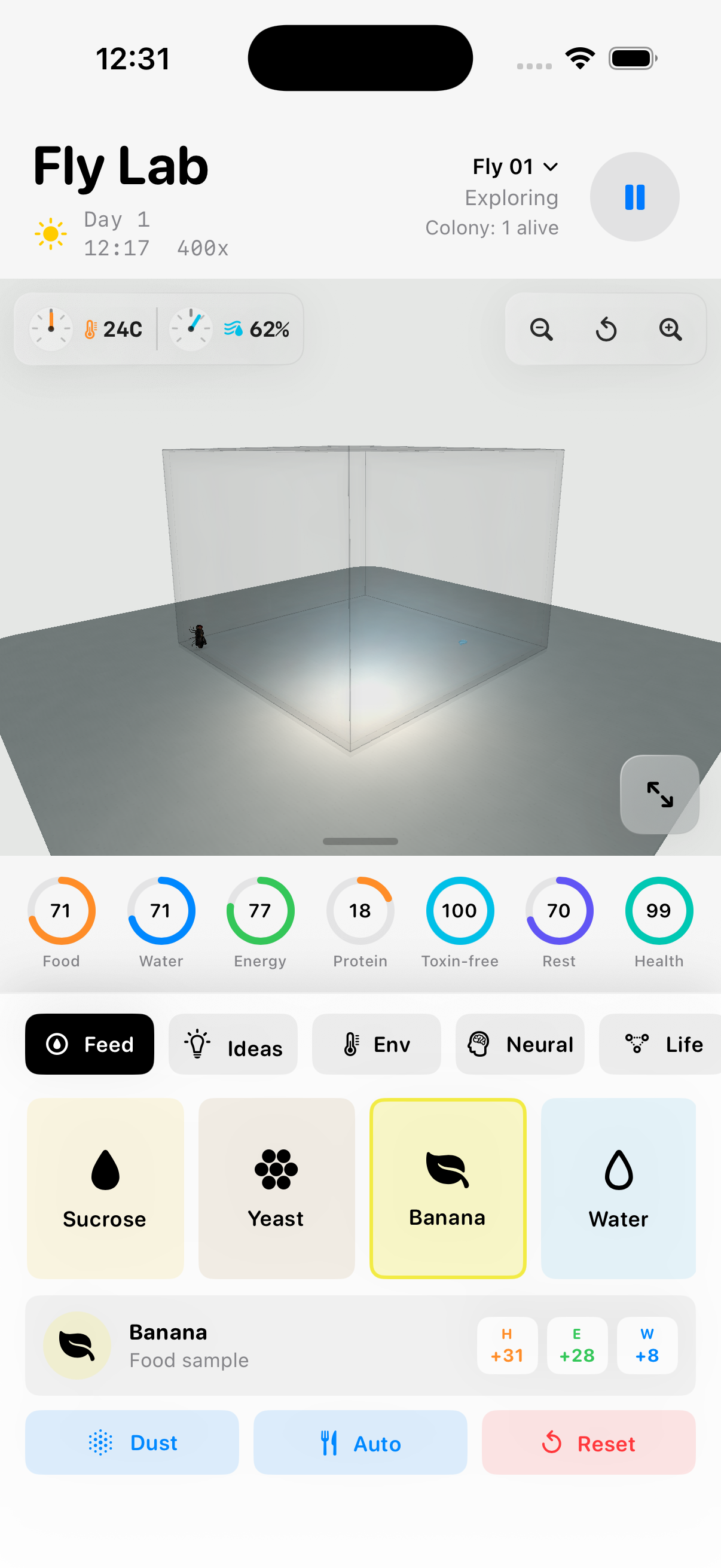
Read the introduction, then choose a material under Feed and tap a visible point on the chamber floor. Selecting a material does not place it. Samples stay a small distance from the edges.
Watch the fly and its vitals. Open Ideas, choose a question and write a prediction before changing the chamber. Record the fly number, starting conditions and simulated day.
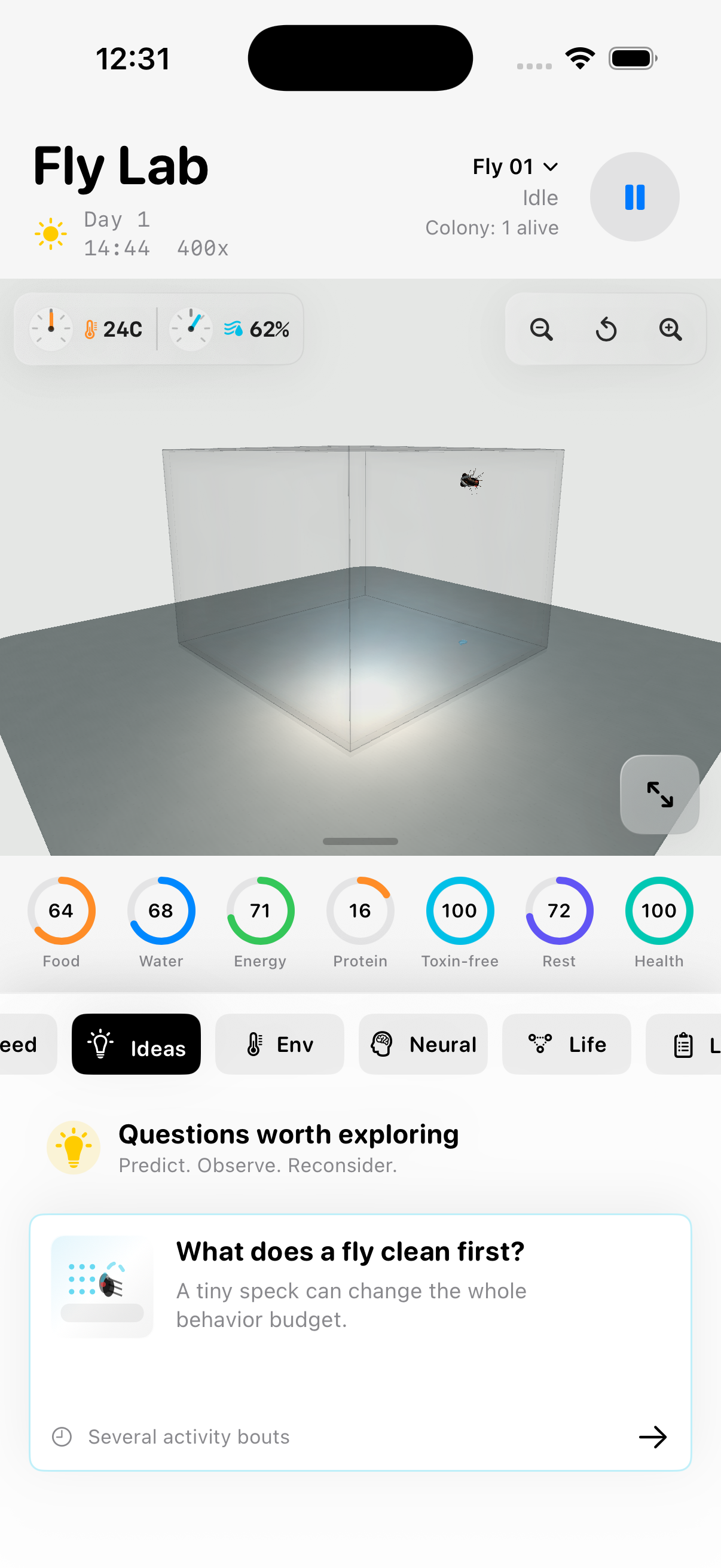
Reading the vitals
Food 14: an example of the app’s critical state. The ring turns red and an exclamation mark appears.
Every displayed circle uses the same direction: 100 is favorable; 0 is depleted or high-risk. Food, Water, Energy, Protein, Toxin-free, Rest and Health are model scores, not measured percentages.
Food reverses hunger, Rest reverses sleep pressure, and Toxin-free reverses toxin load. A red exclamation mark indicates a critical level. Health displays 0 after death.
The app can show a selected offspring. The widget always follows Fly 01, the founder. Compare the same fly and timestamp before comparing readings.
Food, water and other materials
Sucrose
Carbohydrate energy. Watch Food and Energy after the fly feeds; a sugar source does not replace protein.
Yeast
A stronger protein source in the model. Compare it with sucrose while keeping time and temperature the same.
Banana
Mixed nutrients and a substrate for developing stages. Watch both individual vitals and the Life tab.
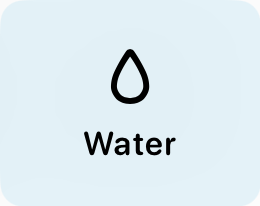
Water
Hydration, not a substitute for food. The outlined drop is water; the filled drop is sucrose.
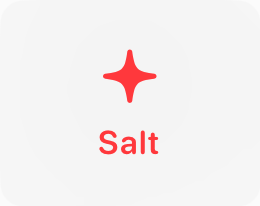
Salt
A modeled stressor that can reduce hydration and increase toxin burden. Harmful scenarios belong only in the simulation.
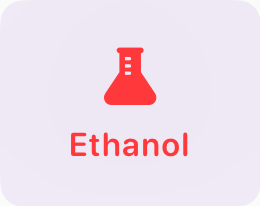
Ethanol
Can alter behavior and increase toxin burden. Observe movement and Toxin-free together, not just the energy score.
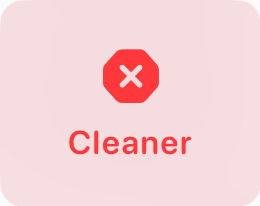
Cleaner
A harmful material in the model. The red stop symbol marks a hazard, not another source of nutrition.
Dust and grooming
Dust is a separate action, not food. It increases grooming pressure in the model. Watch for leg and head cleaning, and follow energy.
Sucrose mainly contributes carbohydrate energy; yeast contributes more protein; banana supplies mixed nutrients and a culture substrate. Water supports hydration. Samples are consumed over time.
Salt is modeled as an aversive stressor. Ethanol can alter behavior and increase toxin burden. Cleaner is harmful. Dust increases grooming pressure. These are qualitative model roles, not real concentrations or instructions for animal experiments.
Environment and time
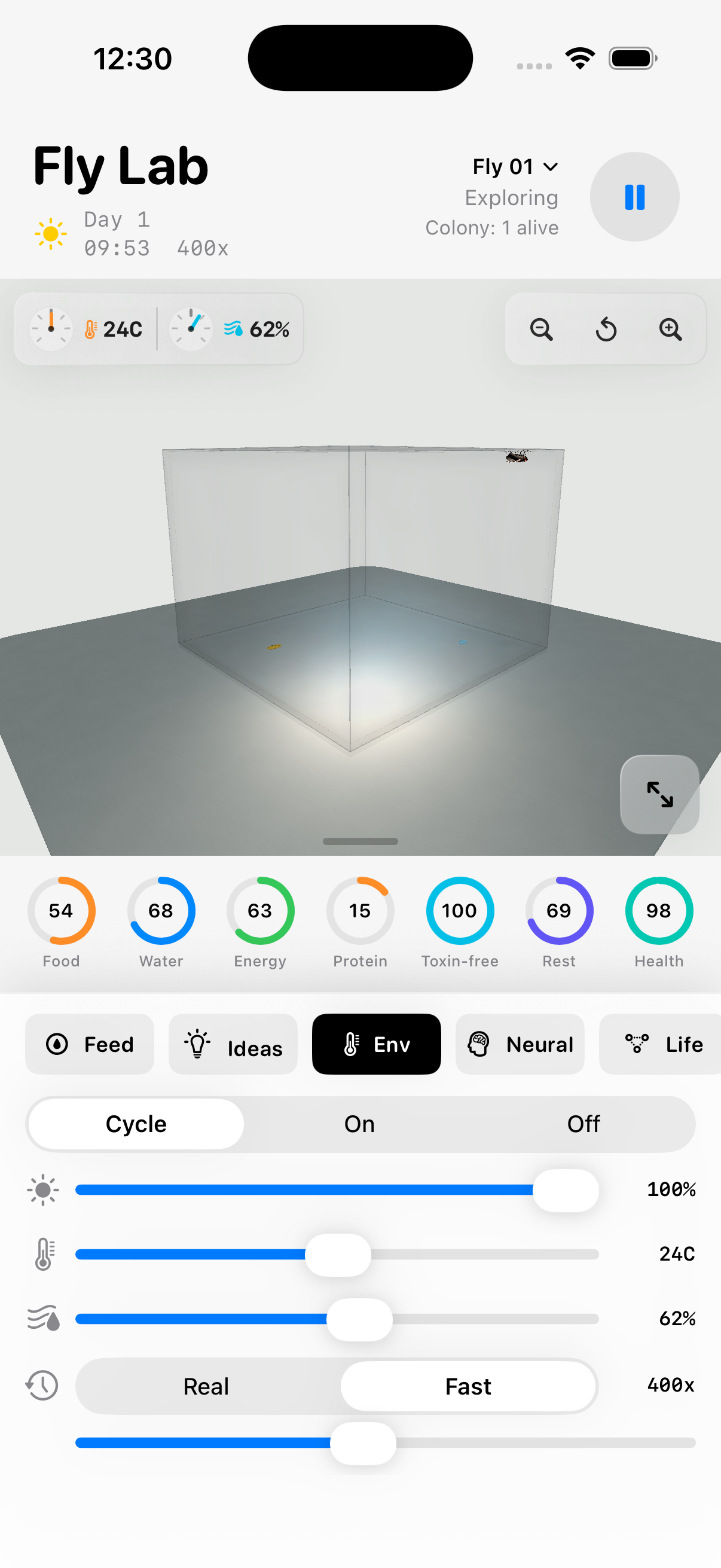
Use Env to change light, temperature and humidity. The chamber runs in real time: one second is one simulated second. Limited time advances let you explore later biological states without speeding up the fly’s visible movement. You can hold three advances; one returns every 20 real minutes.
Light and humidity influence the model and chamber appearance. Visible condensation is an approximation. It does not measure or change the humidity in your room.
When the app is closed
By default, biological time pauses while you are away. Turn on Run while closed in Env to calculate elapsed biological time when you return. One real hour away means one hour in the chamber.
Food and water can run out. Flies can develop, age or die. Auto feed supplies safe materials but does not prevent every cause of death. Manual Pause overrides continuation and stays paused after relaunch.
Unity does not keep rendering in the background. With continuation enabled, the widget uses a read-only copy of the saved biological model to calculate timestamped estimates. iOS decides when widgets refresh; the displayed estimate may be old. Open the app for the current chamber state.
Eggs and the colony
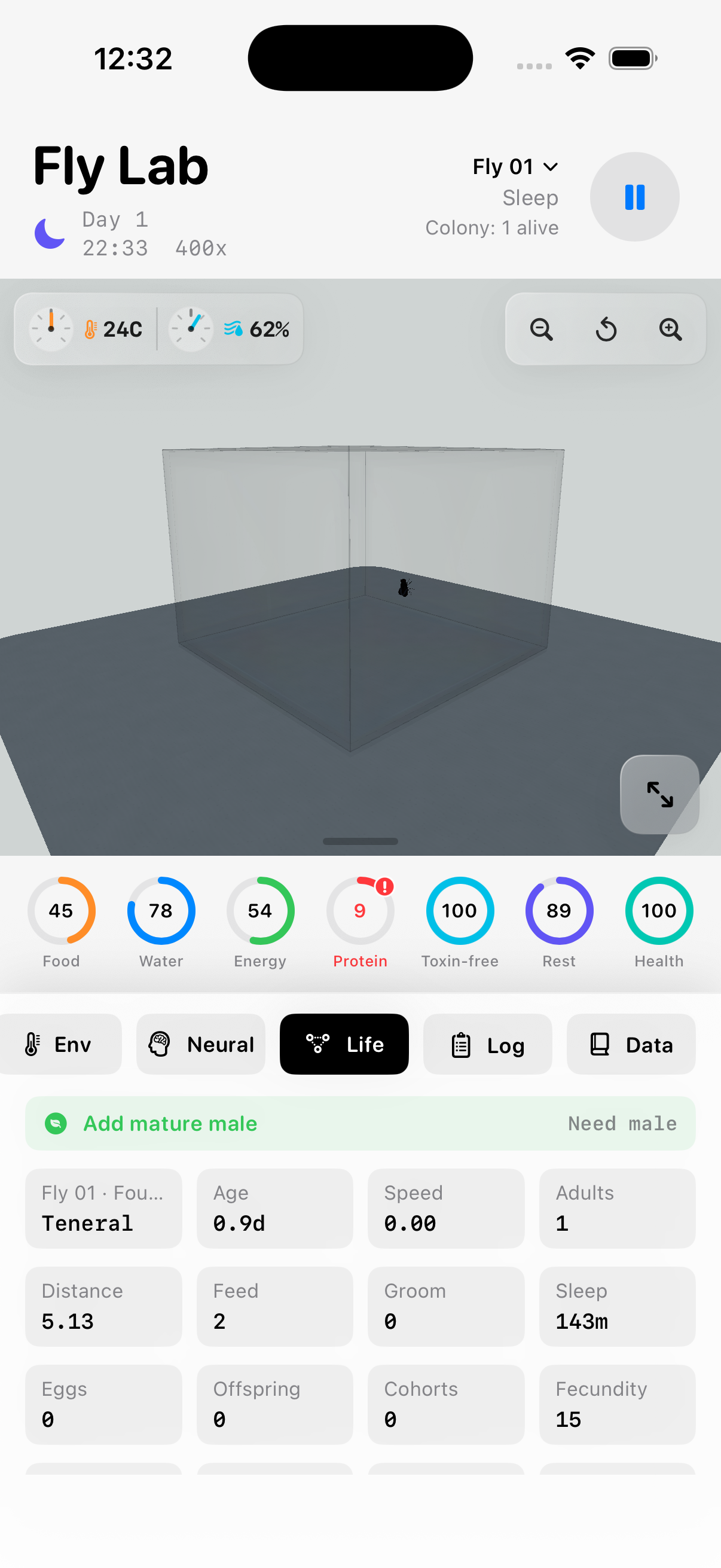
Life lets you inspect egg, larva, pupa and adult stages. Development depends on the model’s temperature, substrate and viability rules. Starter cultures deliberately seed stages; they are not spontaneous reproduction.
New adults settle before joining the active colony. Up to 14 offspring are individually visible; additional adults are included in the population count. Use the fly selector to choose an individual. Fly 01 is the founder.
The founder can die while offspring, immature stages and the chamber continue. Choosing an offspring does not revive it. The Neural visualization still represents the founder.
A closer look
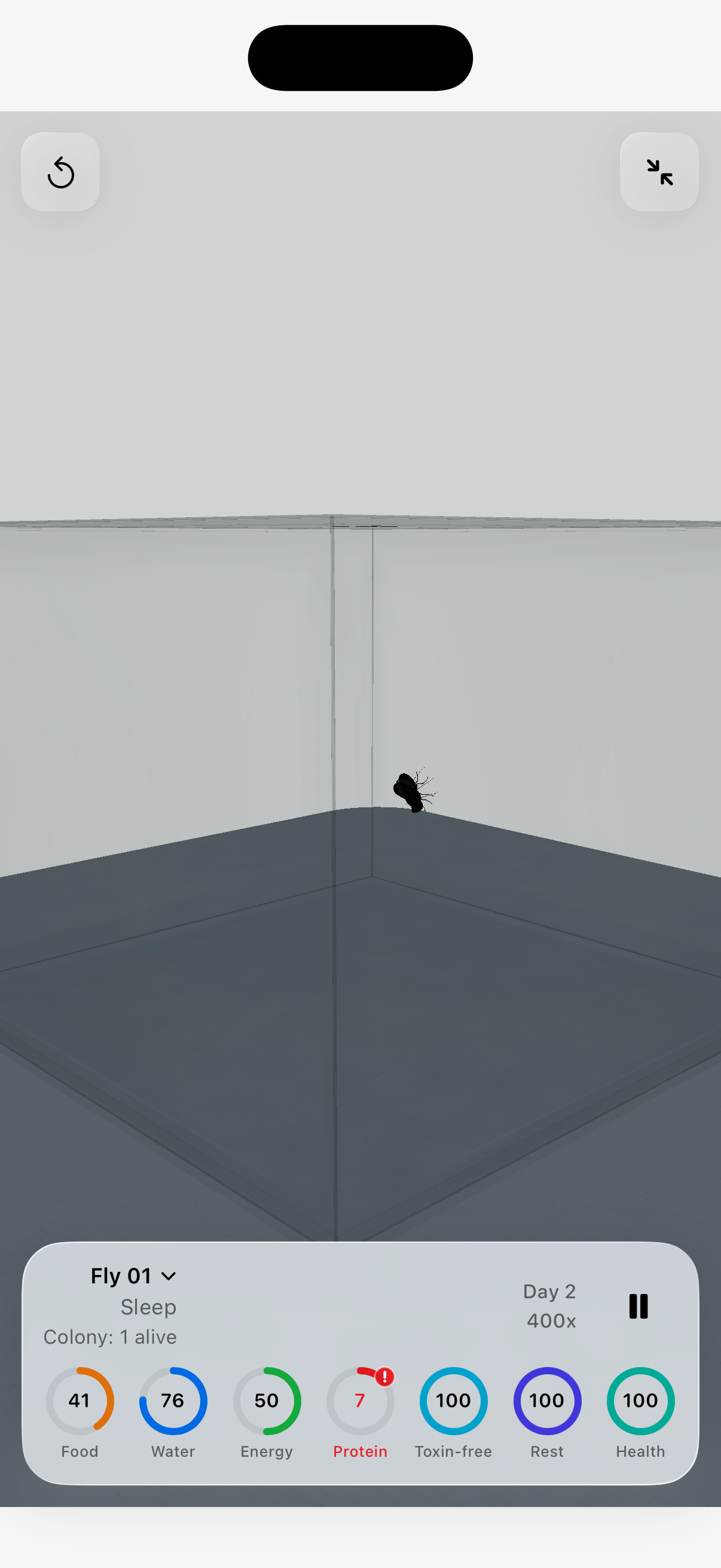
Use the chamber’s camera gestures and zoom controls to inspect it. Moving the camera releases its lock on a selected fly without changing the selected vitals. The outward arrows at the lower-right open Lab view with floating vitals. The adjacent inward arrows give the controls the full screen.
Taps do not place food in Lab view. The split-view icon above the floating vitals restores your previous split. In full-screen controls, the split-view icon is at the top. Reset camera changes only the view, not the experiment.
Saving and starting again
The experiment and Ideas notes are saved locally. Reset replaces the chamber and colony after its deliberate confirmation. It does not clear Ideas notes; edit or empty the text fields to remove them.
Data → Help & About contains offline help and lets you replay the introduction without resetting. No account is required. Version 1.0 has no cloud classroom dashboard or multi-phone synchronization. Avoid putting personal information in notes on shared devices.